
If you want fast, plug-and-play automations with minimal setup, Zapier is the simpler choice. If you need visual, logic-rich flows with branching, loops and finer control, Make suits you better. Cost drivers differ too: Zapier bills per completed task, Make bills per operation, so test both with a real workflow before committing to either.
TL;DR:
- Zapier is ideal for simple, linear workflows that need quick setup, while Make excels with complex flows involving branching and data transformations.
- Testing both platforms with real workflows helps determine which one offers faster results and better controls for your specific automation needs.
- Cost differences are significant at scale: Zapier charges per task, making high-frequency triggers expensive, whereas Make’s per-operation billing can add up with multiple steps.
- Zapier enforces short webhook timeouts of around 30 seconds, limiting slow API integrations, while Make’s HTTP module handles longer responses more flexibly.
- As workflows grow in complexity or handle sensitive data, a switch to dedicated systems or custom apps may become more economical than extending general automation tools.
Table of Contents
- At a glance: strengths, costs and who each platform suits
- Interface and workflow builder: simplicity versus visual depth
- Integrations and app ecosystem: breadth versus depth
- Pricing model and cost drivers: how you actually get billed
- Automation complexity and advanced features
- Performance, reliability and operational concerns
- Collaboration, governance and security for teams
- Who should pick which: use cases and decision tests
- FlowLab perspective: when a bespoke app is the better path
- Mobile app and accessibility features
- Customer support and community resources
- Platform scalability and future-proofing
- Choosing for your team’s next 12 months
- How FlowLab helps teams that outgrow platform automations
- FAQ
- Selected sources and further reading
At a glance: strengths, costs and who each platform suits
Both tools connect your apps and automate repetitive work, but they solve the problem differently. Zapier favours speed and a shallow learning curve; Make favours depth and control once you accept a steeper setup.
Zapier’s strengths:
- Linear, step-by-step builder that non-technical staff pick up within an hour.
- Large catalogue of pre-built templates for common business tasks.
- Fast to deploy for single-trigger, single-action workflows.
Make’s strengths:
- Visual canvas that shows the entire flow, including branches and loops, on one screen.
- Built-in data transformation tools that reduce the need for separate steps.
- Stronger handling of complex, multi-path logic within a single scenario.
Best for Zapier: solo operators, small teams and departments automating straightforward tasks such as form submissions, lead alerts or simple data syncing between two apps.
Best for Make: operations and technical teams building multi-step workflows with conditional logic, array processing or several data sources feeding into one process.
The practical takeaway is this: if your automation fits on one sentence (“when X happens, do Y”), Zapier gets you there fastest. If you’re describing a flowchart with branches and exceptions, Make’s canvas will save you from fighting the tool later. Neither choice is permanent. Many teams start with Zapier for quick wins, then move specific workflows to Make once complexity grows, or commission a dedicated build when a workflow becomes core to how the business runs.
Interface and workflow builder: simplicity versus visual depth
Zapier’s builder works like a form: you pick a trigger, then add actions one after another, each with its own configuration screen. There’s no map of the whole workflow, just a vertical list. This suits anyone used to filling in forms rather than drawing diagrams, and it’s why most people build their first working automation within minutes.
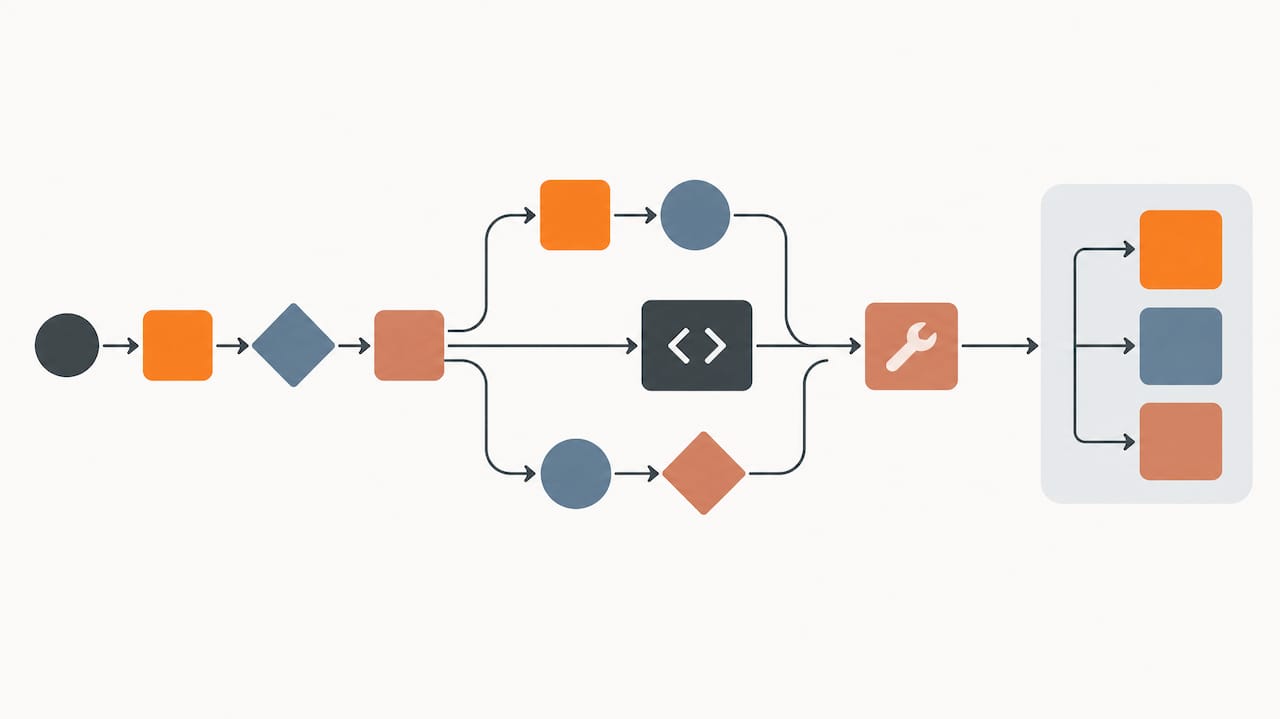
Make uses a canvas instead. Every module sits as a node on a visual map, connected by lines that show data flow. You can see branches, loops and filters at once, which matters once a workflow has more than two or three steps.
- Zapier: faster for simple, linear tasks; harder to visualise once you chain many steps together.
- Make: slower to start, but branching logic, data transforms and parallel paths are easier to follow and debug on the canvas.
Time-to-first-automation favours Zapier for anyone new to automation tools. Make’s learning curve is steeper, mostly because the canvas exposes more decisions upfront: data structure, module order, routing logic. That extra friction pays off once you need conditional branching or want to transform data mid-flow without bolting on extra steps.
Pro Tip: Build the same simple automation in both tools’ free trials and time yourself. Whichever one gets you to a working result faster, with the logic you actually need, is your answer.
Integrations and app ecosystem: breadth versus depth
Both platforms connect to thousands of apps, but the comparison that matters isn’t the headline number, it’s whether your specific tools are supported with the depth you need.
- Catalogue breadth: both platforms cover the major CRMs, spreadsheets, email tools and payment processors most SMEs already use.
- Connector depth: some integrations expose only basic triggers and actions, while others expose nearly every API endpoint the underlying app offers; this varies by connector, not by platform as a whole.
- Custom connections: when a native integration is thin, both platforms let you call an app’s API directly via HTTP or webhook modules, though Make’s HTTP module has more flexibility for complex, API-heavy integrations, according to Zapier’s own documentation on timeout handling.
- Community and marketplace templates: pre-built templates and community-shared workflows can shortcut common setups, though they still need checking against your specific account configuration.
To validate a critical integration quickly, don’t read the marketing page. Search the specific connector inside each platform’s app directory, open its trigger and action list, and check whether the fields you need (custom properties, specific webhook events, nested data) are actually exposed. Ten minutes here will tell you more than any comparison article.
Pricing model and cost drivers: how you actually get billed
The platforms bill differently, and that difference matters more as your automation volume grows. One charges per completed task (each action a workflow performs), the other charges per operation (each individual step a scenario executes, including internal logic steps). A workflow that looks identical on paper can cost very differently depending on how many steps it takes to get from trigger to outcome.
Common cost surprises at scale, according to third-party comparisons of automation pricing:
- High-frequency triggers, such as polling an inbox every minute, rack up usage fast even when nothing happens most of the time.
- Loops and iterators count every pass through a data set, so a workflow processing 50 rows uses far more quota than one processing five.
- Failed steps that retry automatically can multiply usage if the underlying issue isn’t fixed quickly.
- Multi-step scenarios with several transformation steps use more quota per run than a workflow that reaches the same outcome in fewer steps.
To estimate your likely bill, work out how often the trigger fires per month, how many steps a typical run takes, and multiply the two. Say a trigger fires 500 times a month and each run takes four steps: that’s 2,000 units of usage, whichever billing model you’re under, before you’ve compared it against either platform’s tier thresholds.
During a pilot, keep triggers on manual or scheduled runs rather than live polling, and test with a small data sample before turning on full volume.
Automation complexity and advanced features
This is where the platforms diverge most. Zapier supports basic branching through its Paths feature and can loop over small data sets, but it’s built for mostly linear flows. Make treats branching, looping and array manipulation as core features of the canvas itself.
- Branching: Make’s router module lets you split one trigger into multiple parallel paths natively; Zapier’s Paths work but are less visual and harder to nest.
- Looping and arrays: Make’s iterator and aggregator modules handle bulk data transformation more naturally than Zapier’s equivalent tools.
- Custom code: both platforms let you run small JavaScript or Python snippets for logic that no built-in module covers.
- HTTP and webhooks: Make’s HTTP module has no equivalent strict timeout, which gives it more flexibility for slow or custom API-heavy integrations.
Zapier strictly enforces a short timeout on incoming webhooks, typically around half a minute, according to Zapier’s documentation on action timeouts, which can cause silent failures when a connected system takes longer to respond. Teams often work around this by offloading slow processing to an async queue or switching to a polling trigger instead.
Developer-led teams tend to prefer Make’s flexibility; non-technical teams often get further, faster, with Zapier’s simpler constraints.
Performance, reliability and operational concerns
Every automation platform fails occasionally. What matters is how visible that failure is and how easily you can recover from it.
- Both platforms log run history, so a failed step shows up with an error message rather than disappearing silently, but you still need to check the log or set up an alert.
- Webhook timeouts are a known constraint: Zapier enforces a strict 30-second limit on incoming webhooks, and slow-processing systems need an async queue or a polling trigger as a workaround.
- Make’s HTTP module avoids that specific limit, which suits workflows calling APIs that respond slowly or inconsistently.
- High-volume jobs, such as processing hundreds of records in one run, benefit from built-in retry logic and from designing each step to be idempotent, so a retried step doesn’t duplicate work.
- Set up email or Slack alerts on failed runs in either platform rather than relying on someone to check the dashboard.
Idempotent design, meaning a step produces the same result even if it runs twice, matters most in payment and event-driven workflows, where a duplicate run could mean a duplicate charge or a duplicate booking; this is explained in detail in webhooks and idempotency for building reliable crypto integration. Careful webhook and retry design avoids that failure mode regardless of which platform you choose.
Collaboration, governance and security for teams
Both platforms offer team workspaces, but the depth of access control differs by plan tier rather than by platform philosophy. Shared workspaces let multiple people view and edit the same automations, which matters once more than one person builds or maintains workflows.
- Role-based access controls let you separate who can edit a live automation from who can only view it, usually available from mid-tier plans upward.
- Version history and change logs help you trace what changed in a workflow and roll back a bad edit, though the depth of audit trail varies by plan.
- Secrets such as API keys and passwords are stored within the platform’s connection settings rather than inside the workflow itself, which keeps credentials out of visible configuration screens.
For workflows touching customer payment data or regulated information, involve your IT or security lead before connecting a new app, regardless of which platform you use. Platform-level access controls are useful, but they don’t replace a proper review of what data flows where.
Who should pick which: use cases and decision tests
Department by department, the choice usually comes down to how linear the task is and who maintains it.
- Sales teams: routing new leads into a CRM and triggering a follow-up email suits Zapier; scoring leads across multiple criteria before routing suits Make.
- Operations teams: syncing inventory between two systems works well in Zapier; reconciling stock across multiple locations with conditional logic suits Make.
- Finance teams: simple invoice notifications suit Zapier; multi-step approval chains with branching suit Make.
- Marketing teams: single-channel alerts suit Zapier; cross-platform campaign syncing with data transformation suits Make.
Two tests reveal fit faster than reading feature lists. Run a one-hour builder test: rebuild your most common manual task in each platform’s trial and see which one gets you a working result with less fighting. Then run a one-day integration validation: connect your single most critical app in both platforms and check whether every field and trigger you need is actually exposed, not just listed.
Pro Tip: If your pilot keeps needing workarounds, custom code, or a third module just to patch a gap, that’s a signal the workflow may be better served by a dedicated build than by stretching a general platform further.
When a workflow becomes central to daily operations, handles sensitive data, or needs tighter control than either platform’s constraints allow, a hybrid approach, or a purpose-built application, often costs less overtime than continuing to patch a general automation tool.
FlowLab perspective: when a bespoke app is the better path
Every enquiry starts with a workflow review before recommending anything, which is why a general automation platform is often the right call, at least to begin with. Where we see teams run into trouble is when a Zapier or Make workflow becomes business-critical: handling payments, customer data, or a process that breaks if one step times out.
At that point, the ongoing cost of workarounds, premium tiers and manual monitoring often exceeds the cost of a dedicated build. Our complimentary app fit review looks at your current workflow, flags where a platform’s limits are costing you time or risk, and gives early direction on whether a ready product, an adapted one, or a custom build makes more economic sense, before you commit to development.
Mobile app and accessibility features
Neither platform is built primarily as a mobile tool, and that shows in how each handles accessibility on smaller screens. Both offer companion apps, mainly for monitoring run history and receiving failure alerts rather than for building or editing workflows on a phone.
Zapier’s mobile experience leans towards notifications: you can check whether a Zap ran successfully and see recent activity, but building a new automation on a phone screen is impractical given the step-by-step configuration involved. Make’s mobile access is similarly limited to monitoring scenario runs rather than editing the canvas, which makes sense given how much screen space the visual builder needs to stay readable.
For most teams, this isn’t a dealbreaker. Workflow building happens at a desk, and mobile access is mainly useful for a quick check that nothing has broken overnight. If your team genuinely needs to approve steps or review data from a phone as a daily habit, that’s worth testing directly in each platform’s trial rather than assuming based on the desktop experience. Accessibility features such as screen reader support and keyboard navigation vary by browser and operating system rather than by a documented platform standard, so if this matters for your team, test it directly rather than relying on general claims.
Customer support and community resources
Support quality tends to track plan tier on both platforms: free and entry plans typically rely on help centre documentation and community forums, while paid tiers unlock faster response times and, at higher levels, dedicated support contacts.
Both platforms maintain active community forums where users share templates, troubleshoot common errors and discuss workarounds for platform limits, such as the webhook timeout behaviour Zapier documents for slow-processing systems. These forums are often faster than official support for common, previously-solved problems.
Documentation depth differs by connector rather than by platform overall. A well-maintained integration usually has clear setup guides and example use cases; a thinner one may need some trial and error. Before relying on either platform for a critical workflow, search its help centre and community forum for your specific app combination, not just the platform in general, to gauge how well-supported your exact use case actually is.
Platform scalability and future-proofing
Scaling an automation platform mostly means scaling your plan tier and rethinking workflow design, not switching tools. As trigger volume and step count grow, the billing units (tasks or operations) grow with them, so cost becomes the main scaling constraint rather than any technical ceiling.
Both platforms periodically add new connectors, modules and features, so the tool you choose today is unlikely to feel obsolete next year. The bigger future-proofing question is architectural: workflows built as a tangle of linked automations, each depending on the last, get harder to maintain as headcount and complexity grow. Workflows designed with clear ownership, documented logic and sensible error handling scale far more gracefully than ones patched together under deadline pressure, regardless of which platform hosts them.
If a workflow starts touching core business systems, payments, inventory, or customer records at meaningful volume, that’s the point to reassess whether a general platform remains the right long-term home, or whether a dedicated application gives you more control over how the business actually depends on it.
Choosing for your team’s next 12 months
Start with a two-week pilot on whichever platform matches your workflow’s complexity, measured against real triggers, not a demo account. If it holds up, scale it across the department over the following month, then operationalise it with proper monitoring and documented ownership.
Watch for the signal that tells you to stop extending and start building: when a workflow needs more than two or three workaround modules just to behave reliably, or when it touches payments or customer data at real volume. Before scaling anything, agree who owns the workflow, what “success” looks like, and who gets alerted when it fails.
— Ronald
How FlowLab helps teams that outgrow platform automations

When a Zapier or Make workflow starts running your business rather than just supporting it, the maths often shifts towards a dedicated build. It’s possible to review your actual workflow first and recommend the simplest suitable solution, whether that’s a ready product, an adapted one, or a custom app, with clear cost direction before you commit to anything.
Depending on what you’re trying to solve, a few of our product demos show what a dedicated alternative looks like in practice:
- POSFlow demo: running a sample sale from product to payment.
- PresenceFlow demo: turning attendance into a live operating view.
- LeadsFlow: giving every enquiry an owner and a next move.
A complimentary app fit review takes a look at your current setup, flags where a general platform is costing you time or risk, and gives you an early, confidential view of the most economical route forward. There’s no technical brief required and no pressure to commit. Book a fit review and find out what fits before you spend anything on development.
FAQ
Is Zapier profitable?
Zapier is privately held and doesn’t publish detailed profitability figures, so this isn’t publicly listed in a verifiable way. It has scaled into one of the most widely used automation platforms by user count among small businesses, judging by its position in the market.
What are the pricing plans for Make.com automation?
Make bills by operations consumed rather than by completed tasks, with cost rising as workflows involve more steps, loops or branches per run. For exact current tier pricing and operation allowances, check Make’s own pricing page, since published tiers change over time.
Is n8n better than Zapier?
Neither is universally better. n8n is open-source and self-hostable, appealing to technical teams seeking full control, while Zapier favours speed and simplicity for non-technical users wanting to avoid hosting themselves.
Is Zapier free for automation?
Zapier offers a free plan with a limited number of monthly tasks and basic single-step automations, suitable for testing simple workflows. Higher-volume or multi-step automations require a paid tier, with cost driven by the number of tasks completed each month.
Selected sources and further reading
- Guided Tour — Power Automate (Microsoft)
- Troubleshoot action timeouts (Zapier docs)
- Try FlowLab product demos
- SME business automation